¶ User Journey - onboarding from an email
¶ Receiving your certificate email
Your certificate notification email from BlockMark Registry should arrive from the issuer's own email address or from our blockmarktech email address. Occasionally emails get filtered into spam or junk, so please check there if one you are expecting has not arrived. It will look something like this:
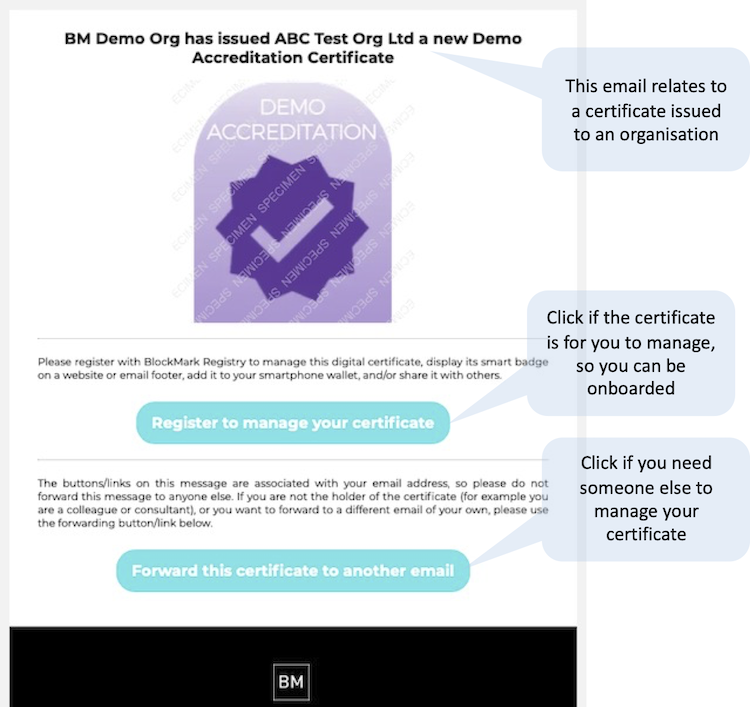
If your email address is already associated with a user on the platform, the link will take you to log in using that email address. You will then jump forward to the ‘joining an organisation’ step (if applicable) or the 'select an account' page.
If you email address is not already associated with a user on the platform, you'll be asked to register as a new user…
¶ Registering as a new user
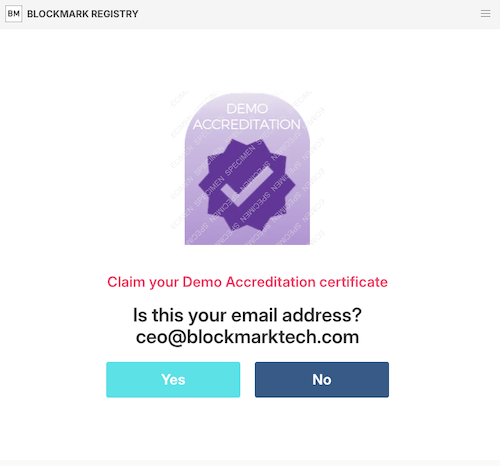
Click yes to confirm this is your email, and then we'll send you a code to it to make sure. This prevents you from onboarding with a typo in your email address, someone else's link, or indeed someone else onboarding with your email address.
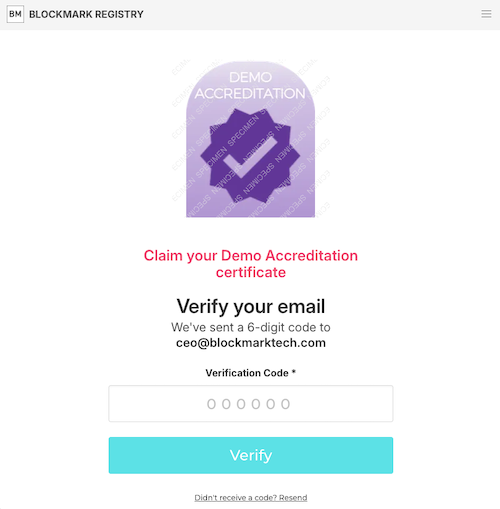
Enter the code and then you'll be asked if you already have a user account.
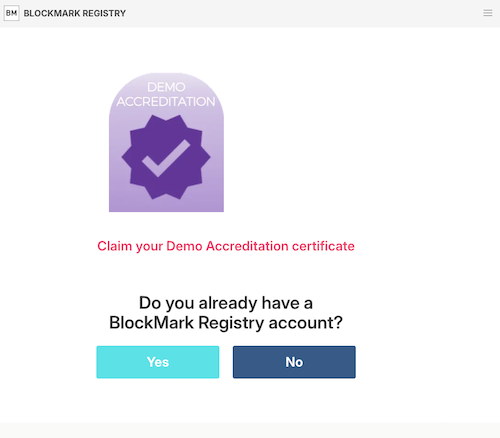
This will be an account associated with a different email address (e.g. another personal email address or a work email address). If you do, click yes and you'll be able to use your other email address to log in and onboard, and this email address will be added to your existing account. This avoids you having multiple accounts, as you'll still be able to switch between your personal area and one or more organisation accounts from the one user account.
If you click ‘No’ you will then be able to set up your new account:
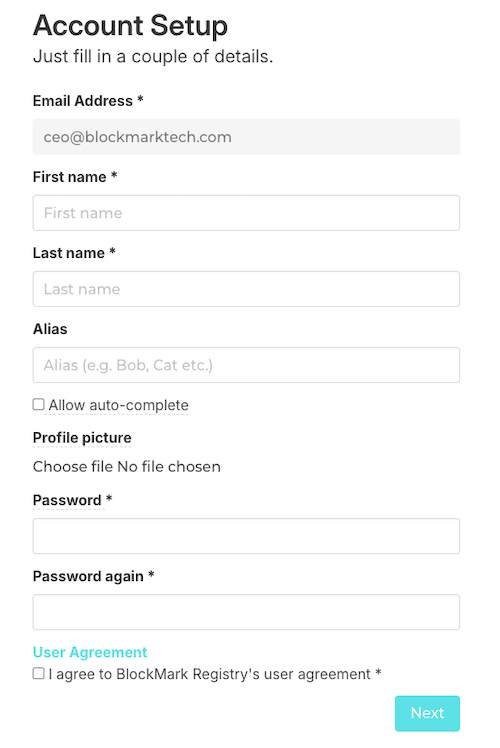
These details relate to you personally as everyone gets a personal account (for your own certificates and to control your own settings and preferences on the platform).
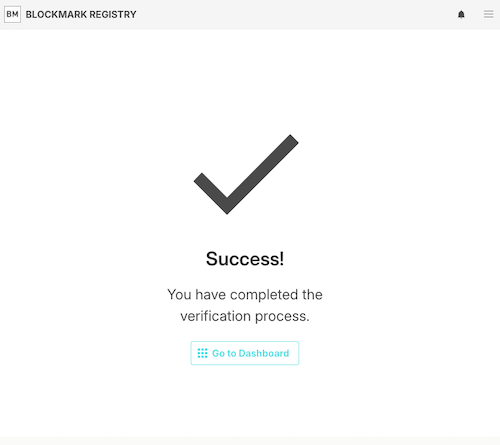
You will also receive an email to confirm that you have registered as a user.
If you are receiving a personal certificate, you'll jump forward to the 'select an account' page.
¶ Joining an organisation
If you are receiving an organisation's certificate and your organisation already exists on the platform and you are already a member of it, you'll jump forward to the 'select an account' page.
If you are not yet linked to the organisation, you'll be asked something similar to the following:
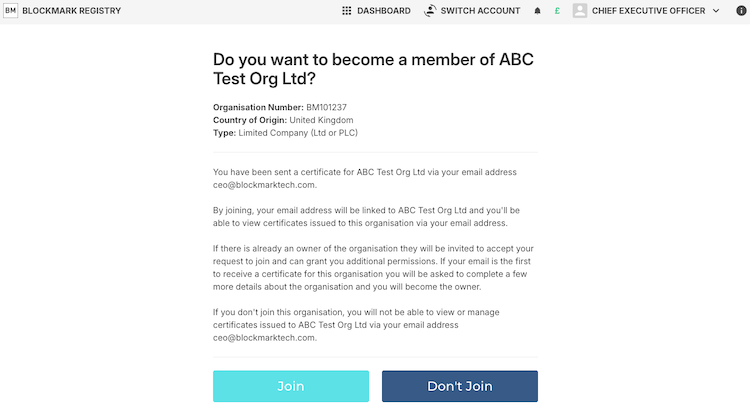
You should press ‘Join' in order to manage your organisation's certificates. You would press ‘Don’t Join' if you have begun onboarding with someone else's email address in error (perhaps because they forwarded it to you).
¶ Registering an organisation
If your organisation is already on the platform, for example because it has already received a certificate before, you'll go to the 'select an account' page.
If your organisation is not on the platform, you will then be asked to check and optionally complete a few more details about your organisation:
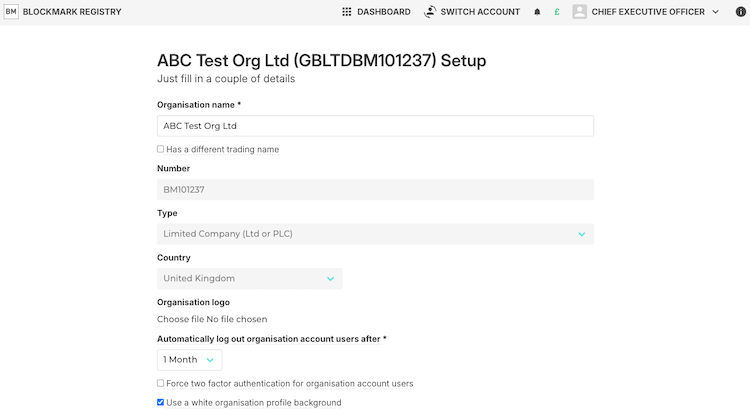
The organisation name can be edited, but doing so may cause name-mismatches with your certificates if they have been issued with this name. The number, type and country are fixed, but you can contact us if there is something wrong with these. Other details can be edited now or later in organisation settings.
Press ‘Setup Organisation’ to continue and you should now arrive at the 'select an account' page…
¶ Select an account
You will now reach a screen that looks something like this:
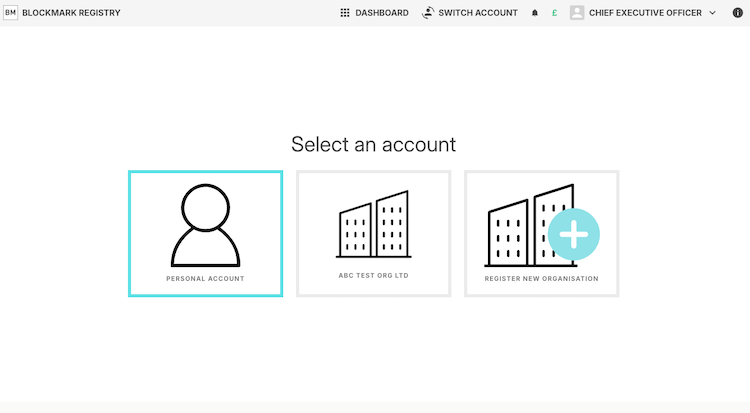
If you have just received a personal certificate, you'll probably not see any organisations (like the middle button example above). Simply press ‘Personal Account’ to find and manage your received personal certificate.
If you have received an organisation's certificate, press the organisation button (such as the ABC Test Org Ltd' example in screenshot above).
If you have joined an organisation that was already registered on the platform, it will already have an admin/owner. They will need to accept you into the organisation too, so you'll see the ‘This account is currently disabled’ message under the organisation button.
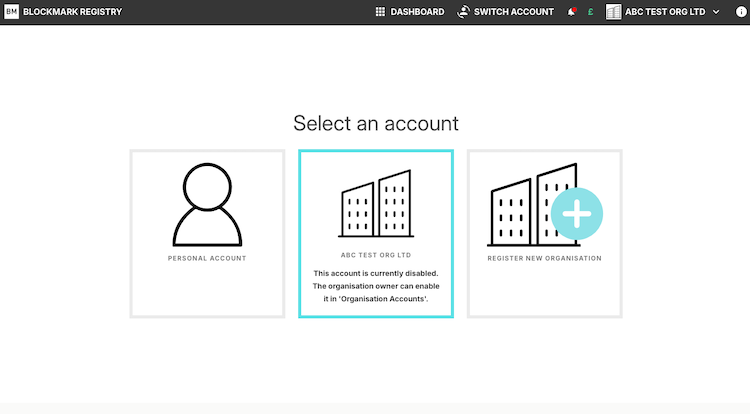
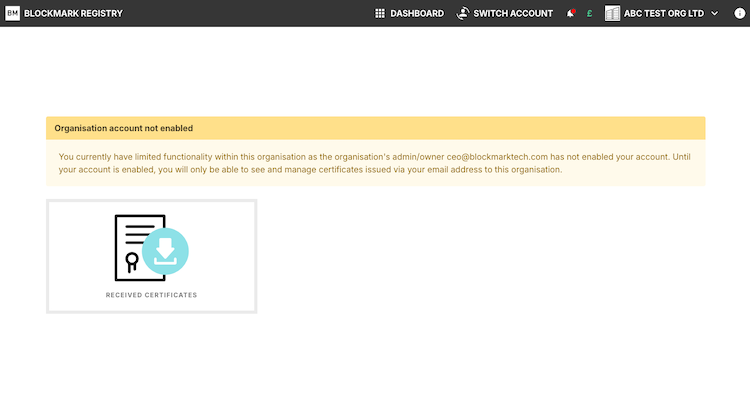
If you press such a button, you'll see a screen like this allowing you to reach the certificate you've received on behalf of the organisation, but not anything else. If your email domain name matches that of the admin owner, you'll be told their email address to help facilitate you getting accepted. If the admin/owner has left your organisation, please contact us.
- You can find out more about navigation.
- You can return to user journeys.